.png?width=300&height=68&name=Lockup_Primary_RGB_IE%20(3).png)
Purpose and Key Benefits
- Consolidated bulk dispatch: Recipient claims are collected over a defined window (a campaign's order period, for example) and shipped together to a single location, rather than one at a time.
- Fulfillment hold tagging: Orders in a group are automatically flagged for fulfillment teams as "hold" until explicit packing or shipping instructions arrive, preventing premature dispatch.
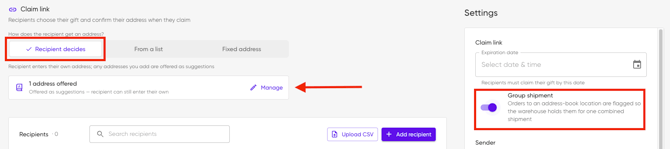
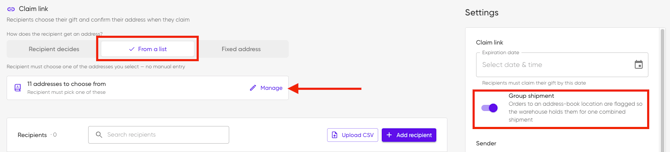
Important: To activate the Group shipment feature in the Settings panel, you must first select an address from your Address Book or add one manually.
You can do this under any of the three delivery options (Recipient decides, From a list, or Fixed address).
Recipient decides:
From a list:
Fixed address:

Step-by-Step Usage Instructions
- Assign a destination. Navigate to the order setup screen and select one or more designated office addresses from the Address Book (or click + Add address)
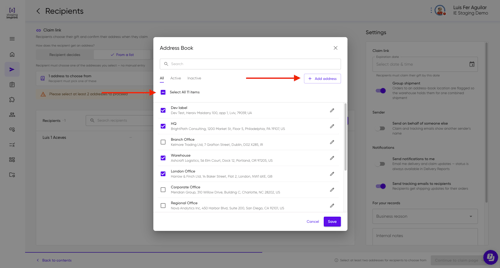
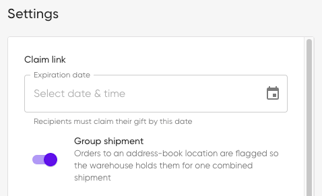
- Enable Group Shipment. Locate the Settings sidebar panel on the right side of the screen and turn on the Group shipment toggle switch.
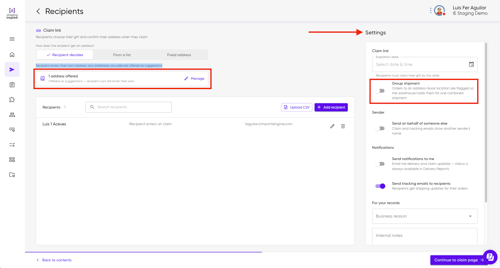
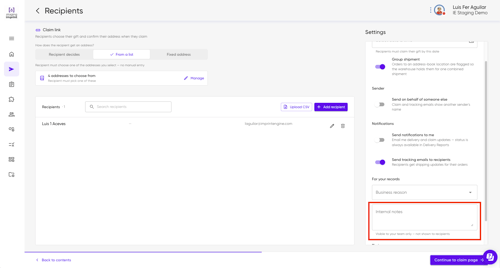
- Add internal notes. Enter specific packaging, bundling, or hold instructions in the Internal notes field. New entries automatically append with a creation timestamp
- Submit the order. Review the details before submitting — once submitted, the toggle locks and further changes trigger a warning, except on active Sharable Links.
- Track and export. Download campaign or delivery reports and filter by the Address Label to monitor consolidated fulfillment status.
If you have any questions, contact us at support@imprintengine.com or visit our IEX Academy on YouTube for additional guidance and tutorials.