.png?width=300&height=68&name=Lockup_Primary_RGB_IE%20(3).png)
How Reminders Work
- Reminders are sent only to recipients who have not yet redeemed their claim link.
- There is no opt-out for recipients — if a send is still active and a recipient hasn't redeemed, they will continue to receive reminders.
- Reminders are tied to the send level, not the campaign level. Expiration dates are also managed per send.
- Reminder emails are sent from the portal user's connected email address (Gmail or Outlook integration). If a user's email integration is not active, reminders will fail to send.
How to Set Reminders on a Send
When configuring a send in the IEX Portal, you'll find a Set Reminder option with the following choices:
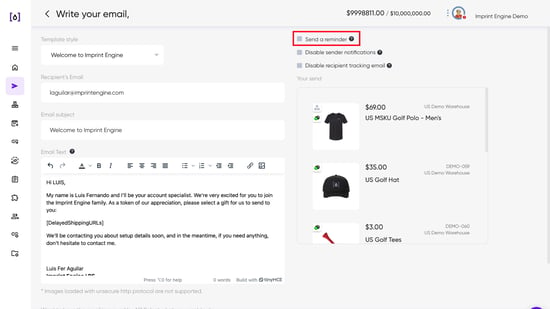
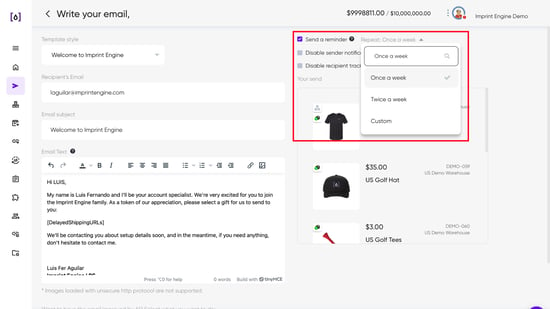
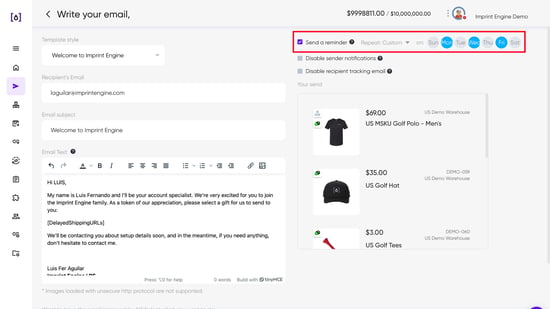
| Option | Description |
| Once a week | Sends one reminder per week to unredeemed recipients. |
| Twice a week | Sends two reminders per week (e.g., Monday and Friday) |
| Custom | Choose specific days of the week for reminders. |
| No reminders | Uncheck the reminder box — recipients will not receive any follow-up emails. |
Example: To remind on Monday and Friday, select "Custom" and choose those two days.
How to Stop Reminders
There are two ways to stop reminders from going out:
- Set an expiration date on the send — Once the send expires, reminders stop automatically. Expiration is managed at the send level.
- Cancel the pending orders — Cancelling all "Awaiting Address" (or unredeemed) orders on a send will stop reminders for those recipients. This is required when a campaign is complete but no expiration date was set.
 If a send has no expiration date and orders remain open, reminders will continue indefinitely.
Email Integration Requirement
For reminder emails to send successfully, the portal user assigned to the send must have their Gmail or Outlook account integrated with the IEX Portal. Without this, emails will silently fail.
- How to set up Gmail integration: How do I integrate my email with the IEX Portal?
- If a user with a broken integration needs to be replaced, reassign the open orders to another user who has a working integration.
Quick Reference
| Scenario | Action |
| Want to remind recipients once a week | Select "Once a week" in Set Reminder |
| Want to remind on specific days | Select "Custom" and choose days |
| Don't want any reminders | Uncheck the reminder box |
| Campaign is done, stop all reminders | Cancel pending orders OR set an expiration date |
| Reminders not sending at all | Check that the assigned user has Gmail/Outlook integrated |
If you have any further questions, please feel free to contact us at support@imprintengine.com