.png?width=300&height=68&name=Lockup_Primary_RGB_IE%20(3).png)
Prerequisite: Before applying a template to your send, you must first create and publish it. To learn how to build and customize templates, check out our guide: "Customizing Claim Link Templates in IEX."
Claim Link templates can be applied across different sending workflows in the portal:
- Create Send (Individual sends)
- Bulk Send (Multiple recipients at once)
- Create One Link Send & One Link Manager (Reusable claim link campaigns)
This does not apply to Direct Sends, as they do not use a Claim Page.
Adding a Template During Send
When creating an individual send, bulk send and one link send with Claim Link enabled, you will select your desired claim page template during the setup workflow.
- Initiate Your Send
- From the home dashboard, click on you prefered
Send. - Select your items/gifts and proceed through the initial shipment and recipient setup steps.
- From the home dashboard, click on you prefered
- Enable Claim Link
- On the Shipment information step, make sure the
Claim linktoggle is switchedON. - Complete the address settings and click
Continue.
- On the Shipment information step, make sure the
- Choose Your Claim Page Template
- In the setup flow, you will arrive at the "Choose your Claim Page template" step.
- By default, your organization's default template (or campaign default) will be selected.
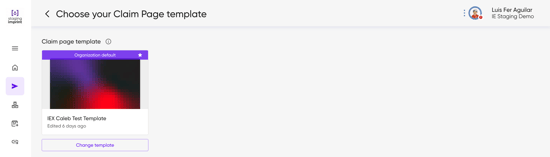
- To change it, click
Change template. - A pop-up modal will appear displaying all available published templates.
- Browse or filter by Department, then click
Choose templateon the template you wish to apply.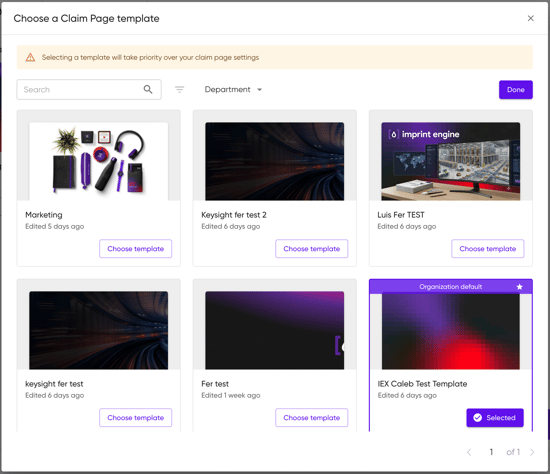
- Browse or filter by Department, then click
- Click
Done/Continue.
- Review & Confirm
- On the Send summary screen, confirm that your selected Claim page template card displays correctly.
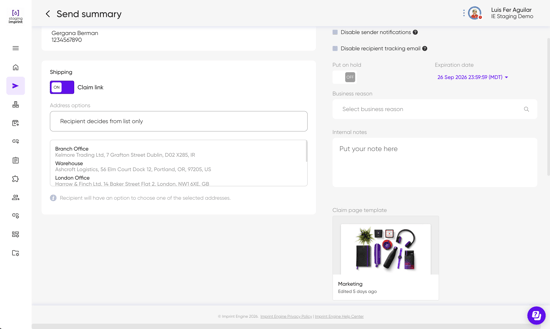
- Click
Create sendto finalize.
- On the Send summary screen, confirm that your selected Claim page template card displays correctly.
Updating an Existing One Link Template (via One Link Manager)
If you have already created a One Link campaign and want to update its landing page template:
- Navigate to One Link Manager from the left navigation menu or home dashboard.
- Select your active One Link from the list to open its One Link Summary page.
- Locate the Claim page template block.
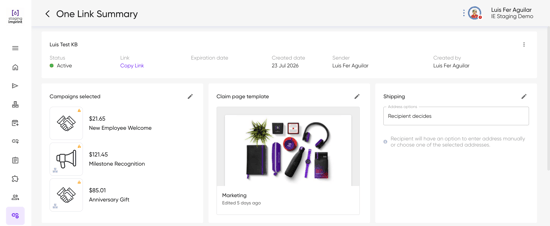
- Click the Edit icon in the upper-right corner of the template block.
- In the pop-up modal, select the new template you want to use and click
Done. - A confirmation toast ("One Link send updated successfully") will appear, updating the recipient experience immediately without breaking or changing the original link!
Need Help?
If you have any questions or need further assistance, please contact our support team at support@imprintengine.com