.png?width=300&height=68&name=Lockup_Primary_RGB_IE%20(3).png)
When a recipient clicks their unique Claim Link, they are taken to a landing page where they can:
-
Select their specific gift option (if the item has MSKUs/variants).
-
Enter their own shipping address details.
How to Create a Claim Link
Follow the steps below to create a send without a pre-existing address:
-
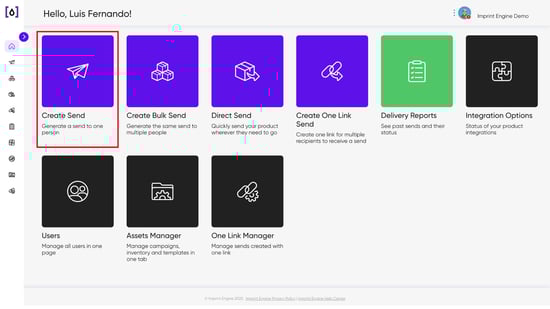
Log in to the IEX Portal and click on Create Send.
-
Choose Your Starting Point. Select one of the following options to build your gift:
-
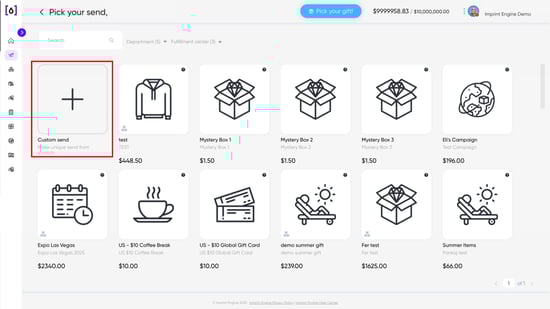
Start from Scratch: Click the Custom Send tile to build a new kit using individual inventory items.
-
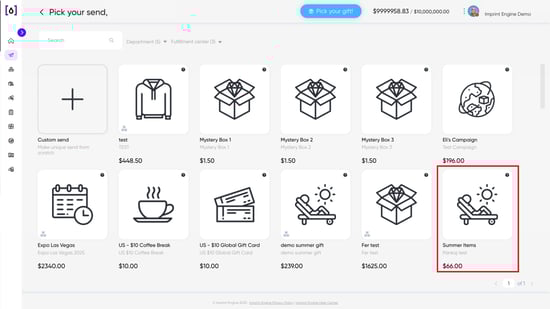
Select from an Existing Campaign: Choose a pre-configured campaign.
-
-
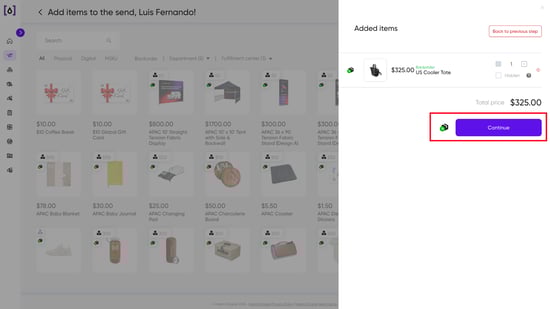
Once you have selected the items you wish to send, click Continue.
-
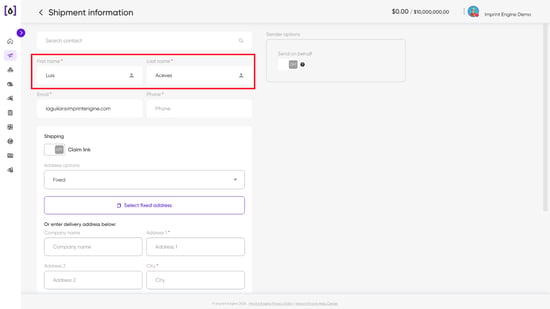
In the Shipment Information section, enter the recipient's First Name and Last Name.
-
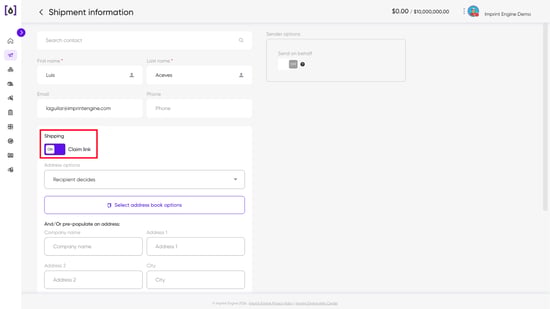
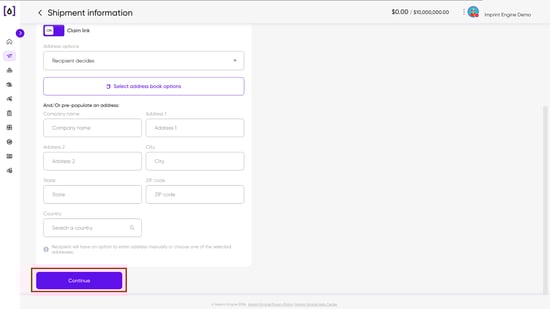
Locate the Shipping window and toggle the Claim Link function to ON.
-
Configure Delivery Method:
-
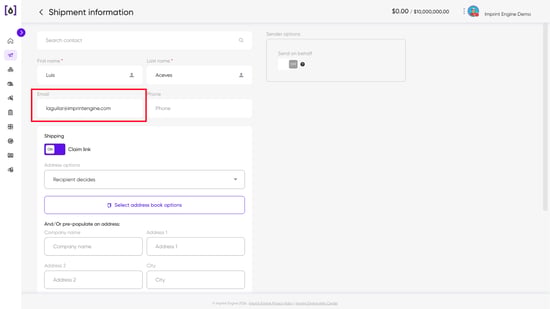
Via Email: If you want the system to email the link automatically, enter the recipient's email address.
-
Manual Delivery: If you prefer to send the link yourself (e.g., via Slack or text), leave the email field blank.
-
-
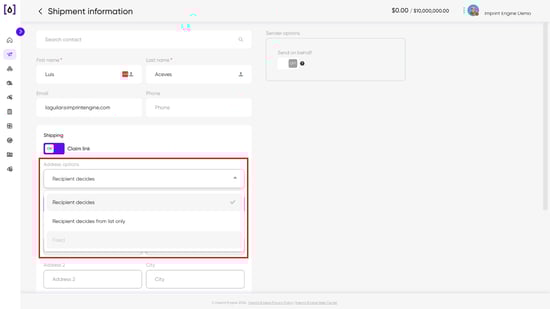
In the Address Options section, select the desired permission level:
-
Recipient decides: The recipient can enter any address.
-
Recipient decides from list only: The recipient must choose from a pre-approved list of addresses from the Address Book.
-
-
Click Continue.
-
Message Configuration:
-
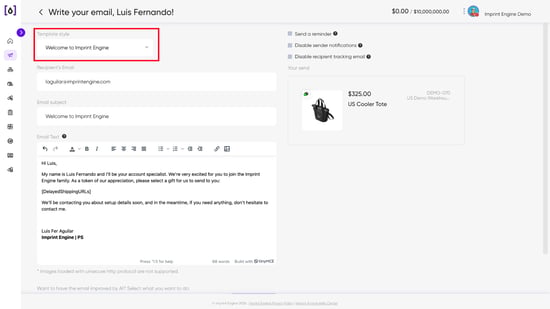
If you added an email address in Step 6, select an email template or type a custom message in the "Write your email" section.
-
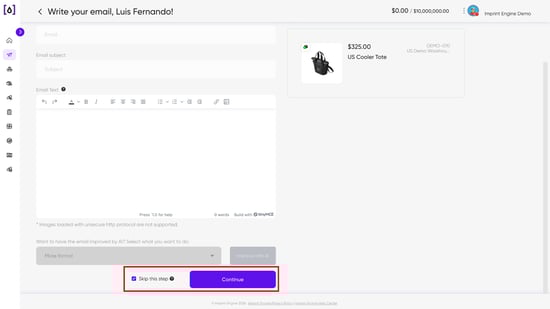
If you did not add an email address, check the Skip this step box and click Continue.
-
-
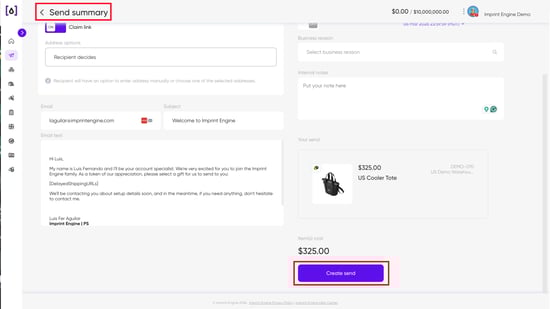
Review the Send Summary. If all details are correct, click Create Send.
Next Steps
-
If you provided an email: The system will automatically send the Claim Link to the recipient.
-
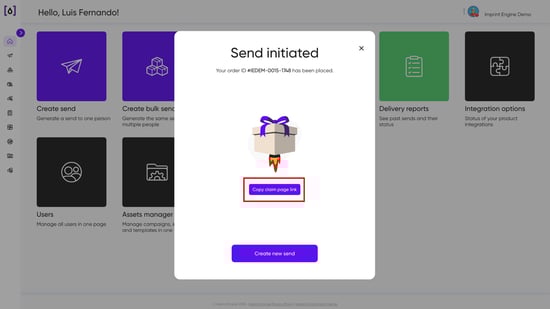
If you did not provide an email: On the confirmation page, copy the generated Claim Page Link and send it directly to the recipient.
Important Notes
-
Order Fulfillment: The order will not be processed, and no package will be sent, until the recipient clicks the link and submits their address information.
-
Notifications: Once the recipient clicks Confirm on the landing page, a new order is automatically created, and you will receive an email notification confirming that the package is being processed.
Need Help?
If you have any questions or need further assistance, please contact our support team at support@imprintengine.com