.png?width=300&height=68&name=Lockup_Primary_RGB_IE%20(3).png)
Step 1: Access the Login Page
-
Open a web browser.
-
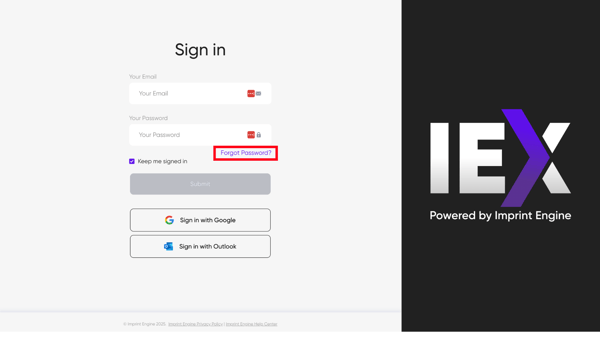
Navigate to the IEX Portal login page.
-
Select the “Forgot Password?” link located below the login fields.
Step 2: Enter Your Email Address
-
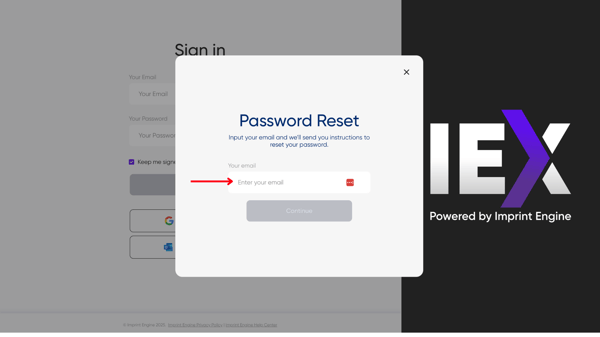
In the Password Reset window, enter the email address associated with your IEX Portal account.
-
Verify the email address for accuracy.
-
Select “Continue.”
Step 3: Check Your Email
-
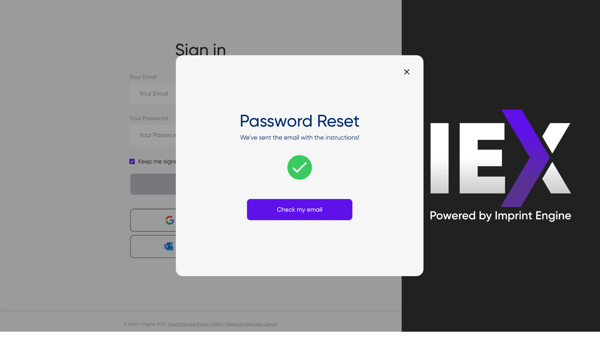
Access your email account.
-
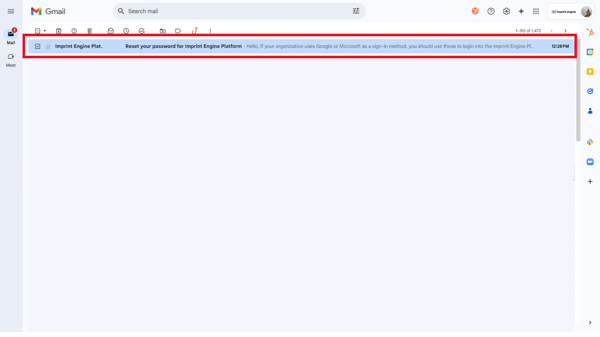
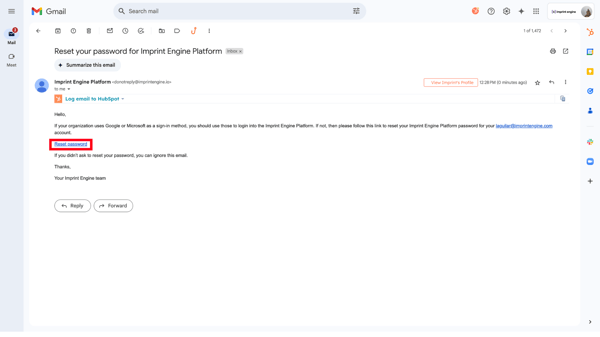
Locate the password reset message sent from Imprint Engine.
-
Open the email.
If the message is not in your Inbox within several minutes, check the Spam or Junk folder.
Step 4: Select the Reset Link
-
In the email, click the “Reset password” link.
-
You will be redirected to a secure page within the IEX Portal.
Step 5: Create a New Password
-
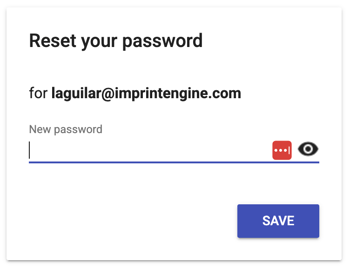
Enter a new password.
-
Confirm the new password in the required field.
-
Submit the form as prompted.
After completing these steps, return to the IEX Portal login page and sign in using your new password.
Password Requirements
Create a strong password using:
-
Uppercase and lowercase letters
-
Numbers
-
Special characters
Do not use easily identifiable information such as your name or date of birth.
Need Help?
If you have any questions or need further assistance, please contact our support team at support@imprintengine.com