.png?width=300&height=68&name=Lockup_Primary_RGB_IE%20(3).png)
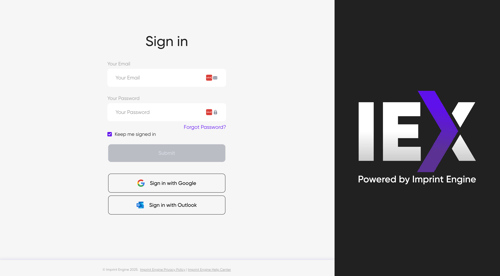
1. Log in to Your Account
- Go to the IEX Portal login page.
- Choose one of the following login methods:
- Click “Sign in with Google” or “Sign in with Outlook” if your organization uses these services.
- Or enter your email address and password provided during account setup.
To reset your password:
- Click “Forgot Password?” on the login page.
- Enter your email address and follow the instructions sent to your inbox.
2. Set Up Your Signature
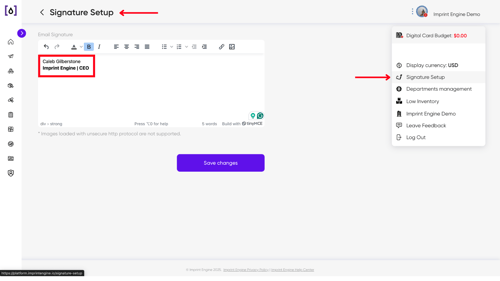
Personalize the emails your recipients receive so they know the gift is coming from you.
-
Navigate to the top-right corner of the IEX Portal.
-
Select Signature Set-up.
-
Create or upload your email signature.
-
Add elements such as:
- Images
- Links
- HTML formatting
3.Choose a Sending Method
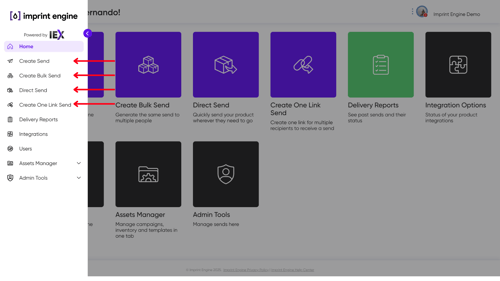
Select the appropriate send type based on your use case.
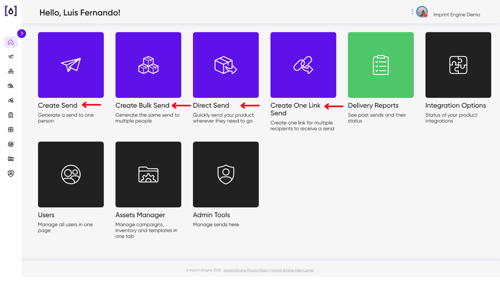
Single Send
Use when sending a gift to one recipient.
Bulk Send
- Prepare a CSV file with recipient details.
- Upload the file to automate sending to multiple recipients.
Direct Send
Direct Send is intended for manual shipments when the sender already has the recipient’s address on hand—for example, sending items to a tradeshow or event.
One Link Send:
Create a single claim link to share with multiple recipients. Each person opens the claim link and enters their own shipping details.
How it works
- Generate a claim link
- Share it
- Recipients fill in their details
Optional security:
Control access with settings such as expiration, login requirements, and usage limits.
4. Configure Your Send
Once you’ve started your send, you’ll have three different options for placing it.
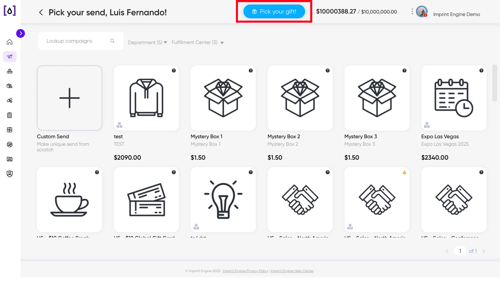
Choose a preset campaign you’ve already created in the portal to simplify and accelerate the sending process.
Recipients will be able to choose their preferred gift from your selected options.
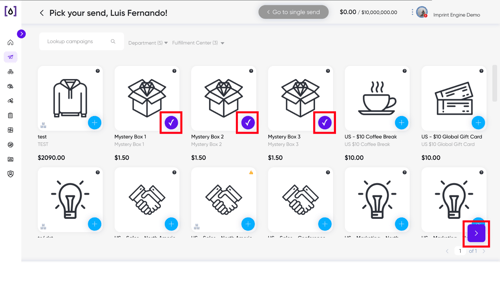
- Click “Pick Your Gift”.
- Select two or more campaigns.
- Click Continue to confirm.
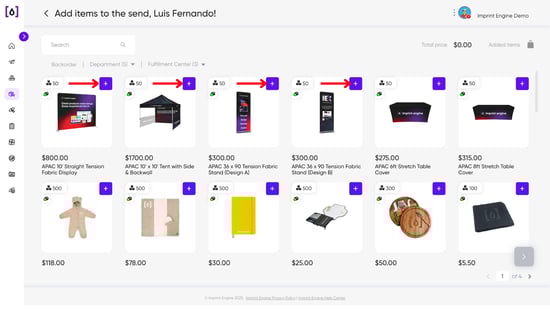
Use this option when you want full control instead of preset campaigns.
- Select items from your inventory.
- Adjust quantities as needed.
- Add items to your send package.
5. Create templates
To send claim links by email through the portal, you first need to set up templates. If you want to include a custom message, create a custom template in advance. Templates can be reused and adjusted for each send without changing the original version.
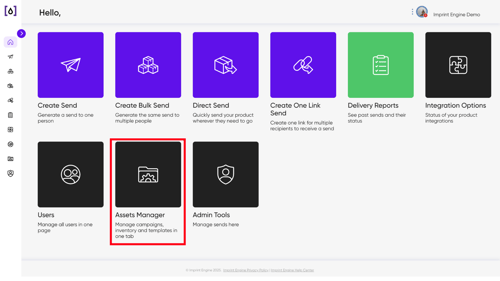
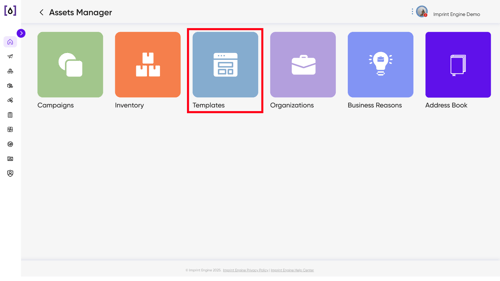
- Go to Assets Manager → Templates
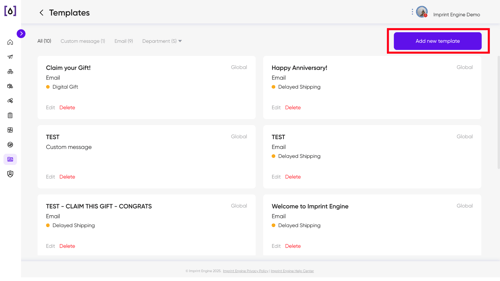
- Click Add New Template.
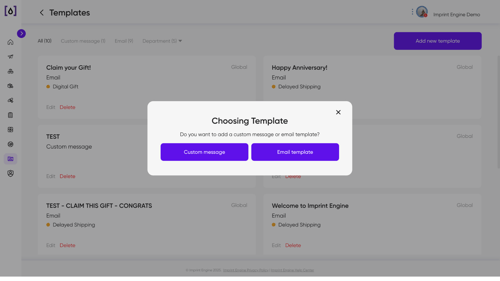
- Choose:
- Custom message, or
- Email template
- Enter a template name and message. Use dynamic tags to insert recipient or sender details automatically.
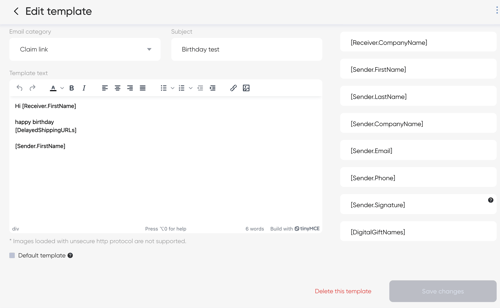
5. Click Save Changes.
6. Add new users
Organization Admins: Grant team members access and manage portal permissions by following the steps below.
1. Go to Users from the dashboard or sidebar.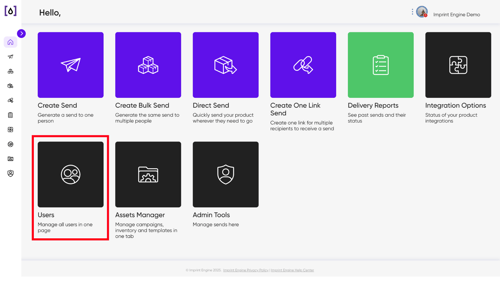
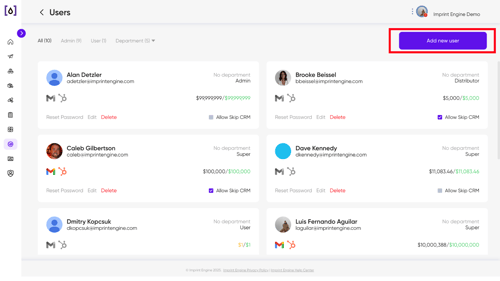
2. Click Add New User.
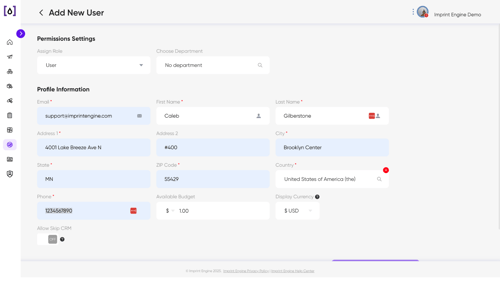
3. Enter the required user details.
Click Add New User to confirm.
If you have any questions, contact us at support@imprintengine.com or visit our IEX Academy on YouTube for additional guidance and tutorials.